# Top 10 Screvi Features You Should Be Using in 2026
> The ten Screvi features I reach for most, from spaced-repetition review to asking Claude questions about my own highlights. Here's what each one does and why it matters.
I read a lot, and for years I had nothing to show for it. Highlights scattered across a Kindle, a few notebooks, and three different apps, all collecting dust.
Screvi is the fix: one place that collects every highlight and actually helps you use it. Here are the ten features that do the heavy lifting.
## 1. Daily Review with spaced repetition
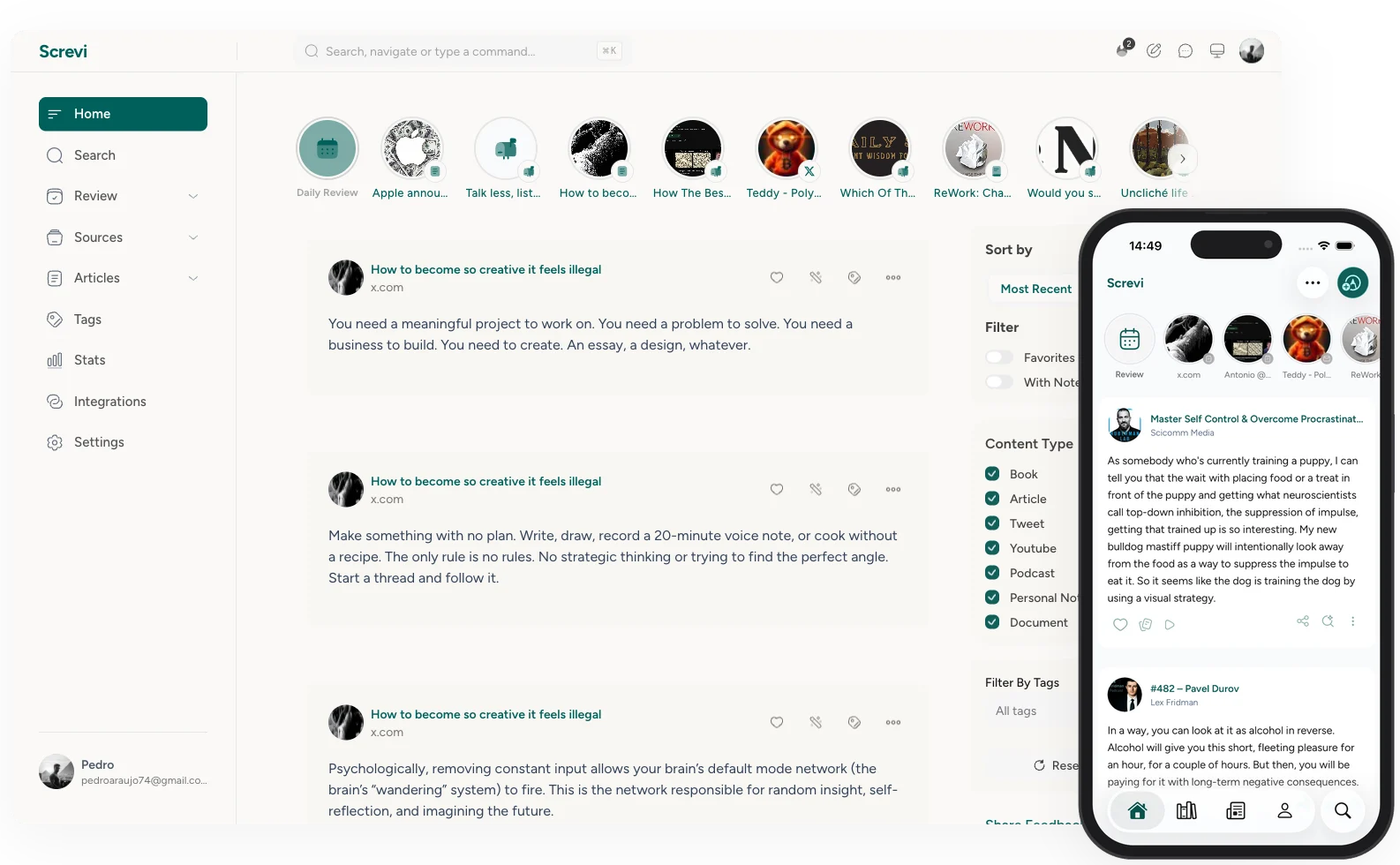
This is the feature that changed how I read. Screvi resurfaces your highlights on a [spaced-repetition](https://en.wikipedia.org/wiki/Spaced_repetition) schedule, Anki-style, so the ideas worth keeping come back right before you'd forget them.
You stay in control of each one: see it more often, less often, or never again. Review in the app, swipe through them on mobile, or get them by email. There's even an iOS widget that nudges you when a review is ready.
## 2. AI semantic search
Keyword search fails the moment you forget the exact words. Semantic search doesn't.
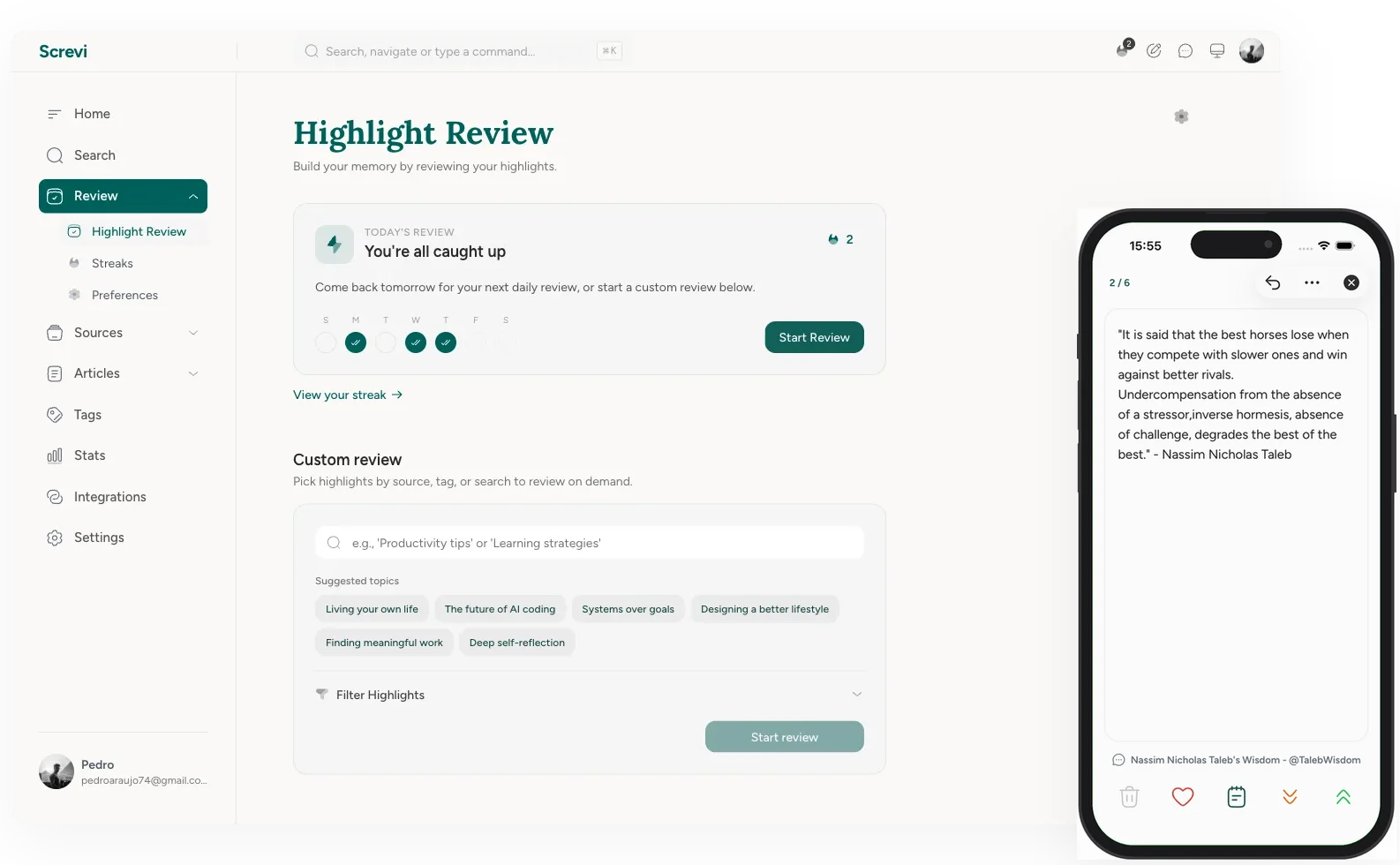
**Ask "what have I read about building habits?" and Screvi finds the right highlights, even the ones that never use the word "habit."** It searches by meaning, across every book, tweet, and article you've saved.
## 3. Ask Claude about your own highlights
Connect your library to Claude through the [Screvi MCP server](https://screvi.com/claude-mcp), and you can ask it about everything you've ever highlighted.
Draft an essay with real quotes from your reading. Pull every note you saved on a topic. Search your library in plain language, straight from Claude. Your highlights stop being a graveyard and become a source you can actually write from.
## 4. Sync highlights from Kindle, Kobo, and Apple Books
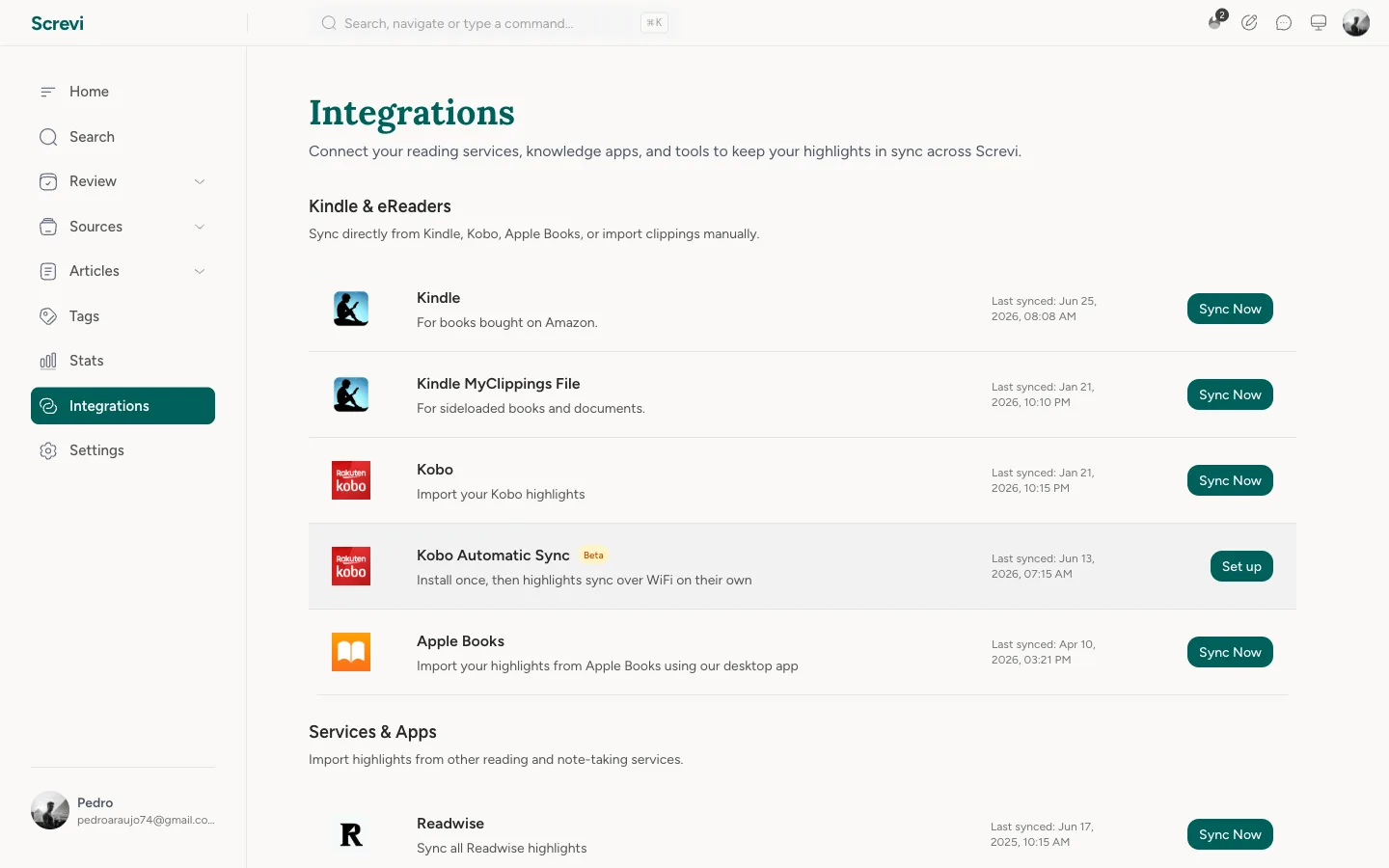
Your ebook highlights belong to you, so Screvi pulls them all in. Kindle syncs automatically every 24 hours via the extension or app. [Kobo highlights](/blog/kobo-highlights-sync) import from your device file. Apple Books syncs through the macOS desktop app.
Coming from another tool? Screvi imports your whole [Readwise](/blog/screvi-readwise-alternative) library too, so nothing gets left behind.
## 5. Capture physical book highlights with your camera
Paper books are the hardest highlights to capture.
**Snap a photo of a page in the iOS or Android app, and Screvi's AI reads the highlighted lines and digitizes them automatically.** The passages you mark in print end up in the same library as everything else.
## 6. Save and read anything, with AI summaries
Screvi is also a read-it-later app. Save web articles, newsletters, PDFs, and YouTube transcripts, then read them in a clean, distraction-free reader with an inbox-and-archive workflow.
Two things make it stick: you can highlight as you read, and **every article comes with an AI summary** so you can get the gist before you commit, or refresh it after.
## 7. Your own personal newsletter inbox
Newsletters get buried in your email. Screvi gives you a unique `@in.screvi.com` address instead. Subscribe with it, and **every issue lands in your library as a clean, readable article** instead of cluttering your email.
Tracking pixels and unsubscribe footers get stripped out, the sender is detected automatically, and the full text is searchable, highlightable, and taggable like anything else you save.
## 8. Subscribe to any RSS feed
Build your own reading feed instead of chasing links. Screvi's Explore page comes with curated RSS sources, and you can paste in any feed URL to follow the writers and sites you care about.
New posts show up alongside the rest of your reading, ready to save, summarize, and highlight.
## 9. Tag your highlights, and let AI do it for you
A growing library is only useful if you can slice it. Screvi's tags work across everything you save, books, articles, tweets, and notes alike, with 18 colors and custom hex if you're particular.
The part worth using: **open any highlight, hit "Suggest Tags," and Screvi reads the passage and recommends tags from the ones you already have.** Tag in bulk, filter your feed and search by tag, and the pile finally turns into something you can navigate.
## 10. Export anywhere: Obsidian, Notion, Markdown
Your highlights are yours, so Screvi makes them easy to take with you. The official [Obsidian plugin](https://community.obsidian.md/plugins/screvi) syncs straight into your vault. Notion export is in beta. You can also export everything as Markdown or HTML, Apple Notes friendly, delivered as a ZIP organized by source.
Screvi works as the hub: pull your reading in from everywhere, send your highlights wherever you need them.
## Bonus: Highlight straight from the podcast player
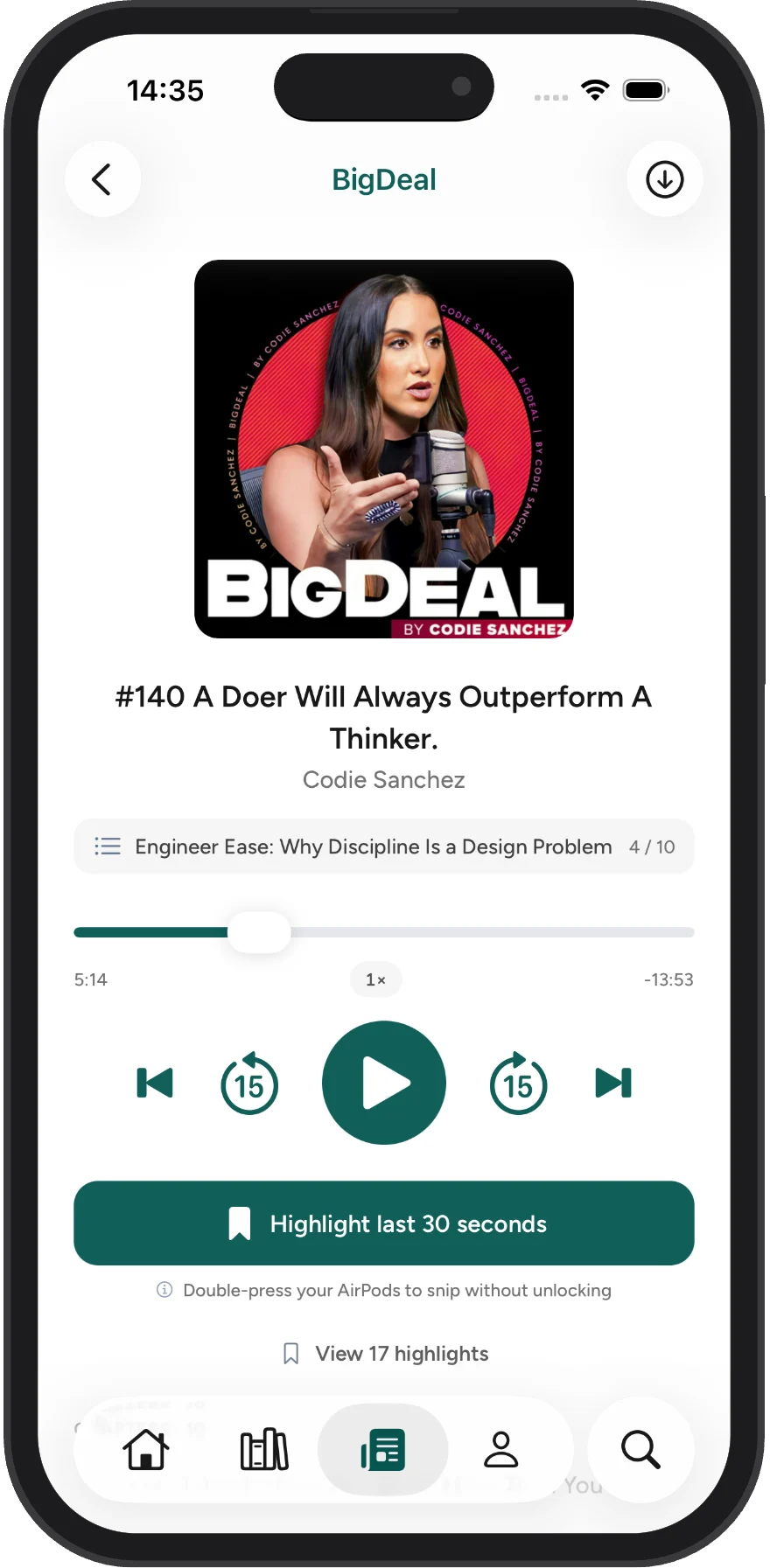
Screvi has a podcast player too (iOS, in beta). Listen inside the app, and when a line lands, **tap "Highlight last 30 seconds" to save it straight to your library** instead of scrubbing back to find it later. You can even double-press your AirPods to snip without unlocking.
## Try them yourself
The features only matter once your own highlights are inside. [Import yours and start for free](https://app.screvi.com/register), then see which one you can't live without.
Screvi runs everywhere: get it on the [App Store](https://apps.apple.com/us/app/screvi/id6670569420), [Google Play](https://play.google.com/store/apps/details?id=com.screvi.app), or right in your [browser](https://app.screvi.com).


 ## 2. AI semantic search
Keyword search fails the moment you forget the exact words. Semantic search doesn't.
**Ask "what have I read about building habits?" and Screvi finds the right highlights, even the ones that never use the word "habit."** It searches by meaning, across every book, tweet, and article you've saved.
## 2. AI semantic search
Keyword search fails the moment you forget the exact words. Semantic search doesn't.
**Ask "what have I read about building habits?" and Screvi finds the right highlights, even the ones that never use the word "habit."** It searches by meaning, across every book, tweet, and article you've saved.
 ## 3. Ask Claude about your own highlights
Connect your library to Claude through the [Screvi MCP server](https://screvi.com/claude-mcp), and you can ask it about everything you've ever highlighted.
Draft an essay with real quotes from your reading. Pull every note you saved on a topic. Search your library in plain language, straight from Claude. Your highlights stop being a graveyard and become a source you can actually write from.
## 4. Sync highlights from Kindle, Kobo, and Apple Books
Your ebook highlights belong to you, so Screvi pulls them all in. Kindle syncs automatically every 24 hours via the extension or app. [Kobo highlights](/blog/kobo-highlights-sync) import from your device file. Apple Books syncs through the macOS desktop app.
Coming from another tool? Screvi imports your whole [Readwise](/blog/screvi-readwise-alternative) library too, so nothing gets left behind.
## 3. Ask Claude about your own highlights
Connect your library to Claude through the [Screvi MCP server](https://screvi.com/claude-mcp), and you can ask it about everything you've ever highlighted.
Draft an essay with real quotes from your reading. Pull every note you saved on a topic. Search your library in plain language, straight from Claude. Your highlights stop being a graveyard and become a source you can actually write from.
## 4. Sync highlights from Kindle, Kobo, and Apple Books
Your ebook highlights belong to you, so Screvi pulls them all in. Kindle syncs automatically every 24 hours via the extension or app. [Kobo highlights](/blog/kobo-highlights-sync) import from your device file. Apple Books syncs through the macOS desktop app.
Coming from another tool? Screvi imports your whole [Readwise](/blog/screvi-readwise-alternative) library too, so nothing gets left behind.
 ## 5. Capture physical book highlights with your camera
Paper books are the hardest highlights to capture.
**Snap a photo of a page in the iOS or Android app, and Screvi's AI reads the highlighted lines and digitizes them automatically.** The passages you mark in print end up in the same library as everything else.
## 6. Save and read anything, with AI summaries
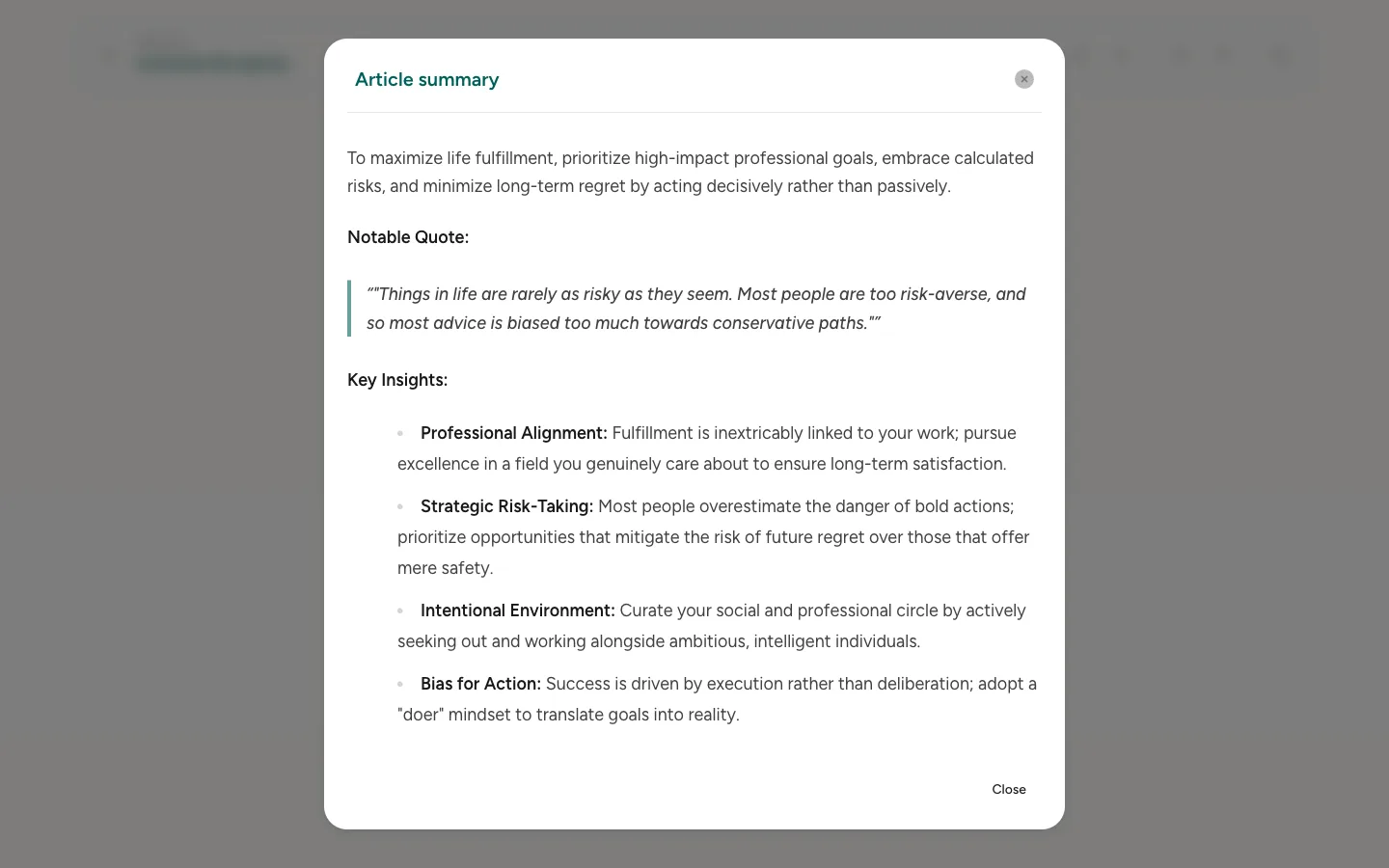
Screvi is also a read-it-later app. Save web articles, newsletters, PDFs, and YouTube transcripts, then read them in a clean, distraction-free reader with an inbox-and-archive workflow.
Two things make it stick: you can highlight as you read, and **every article comes with an AI summary** so you can get the gist before you commit, or refresh it after.
## 5. Capture physical book highlights with your camera
Paper books are the hardest highlights to capture.
**Snap a photo of a page in the iOS or Android app, and Screvi's AI reads the highlighted lines and digitizes them automatically.** The passages you mark in print end up in the same library as everything else.
## 6. Save and read anything, with AI summaries
Screvi is also a read-it-later app. Save web articles, newsletters, PDFs, and YouTube transcripts, then read them in a clean, distraction-free reader with an inbox-and-archive workflow.
Two things make it stick: you can highlight as you read, and **every article comes with an AI summary** so you can get the gist before you commit, or refresh it after.
 ## 7. Your own personal newsletter inbox
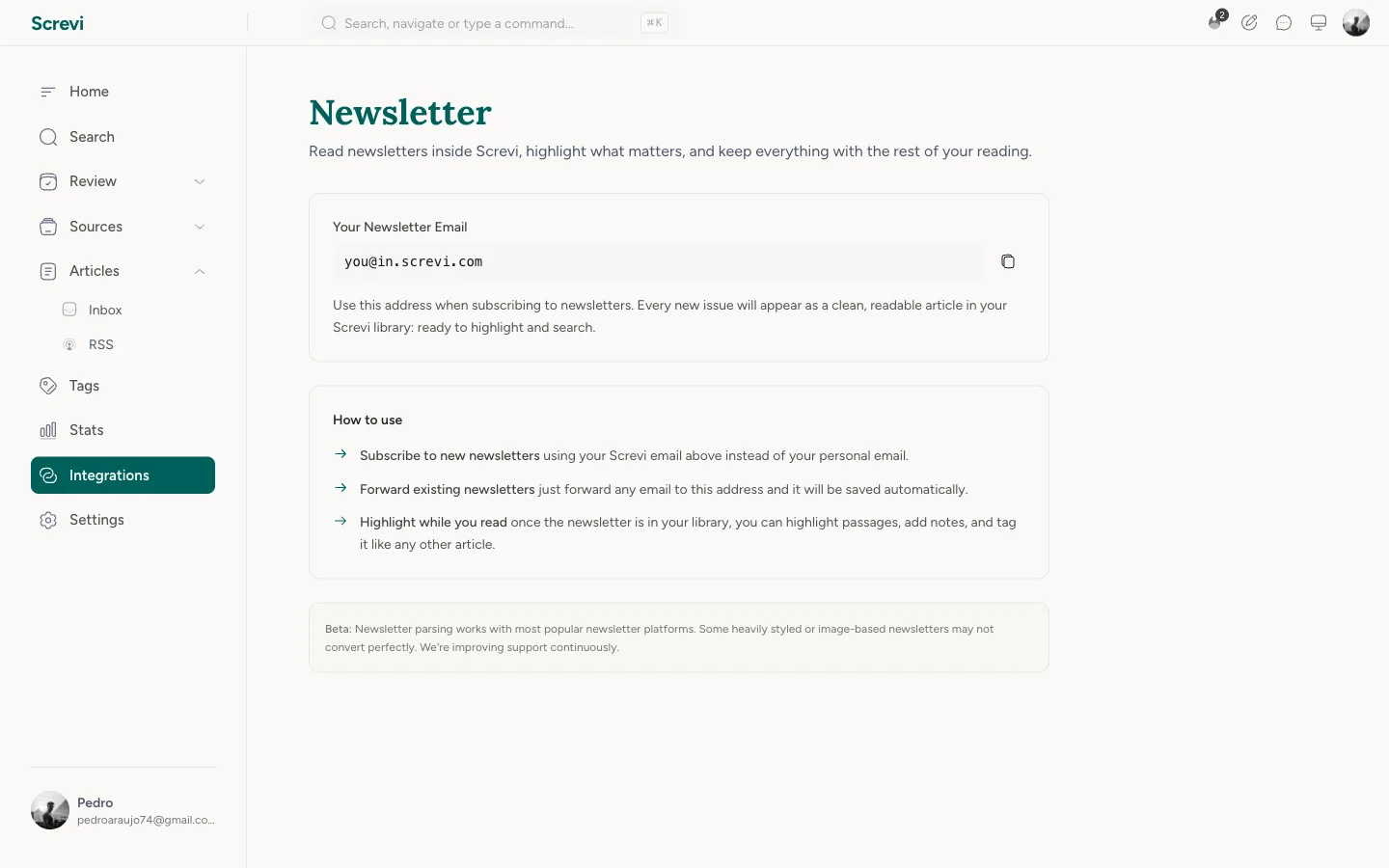
Newsletters get buried in your email. Screvi gives you a unique `@in.screvi.com` address instead. Subscribe with it, and **every issue lands in your library as a clean, readable article** instead of cluttering your email.
Tracking pixels and unsubscribe footers get stripped out, the sender is detected automatically, and the full text is searchable, highlightable, and taggable like anything else you save.
## 7. Your own personal newsletter inbox
Newsletters get buried in your email. Screvi gives you a unique `@in.screvi.com` address instead. Subscribe with it, and **every issue lands in your library as a clean, readable article** instead of cluttering your email.
Tracking pixels and unsubscribe footers get stripped out, the sender is detected automatically, and the full text is searchable, highlightable, and taggable like anything else you save.
 ## 8. Subscribe to any RSS feed
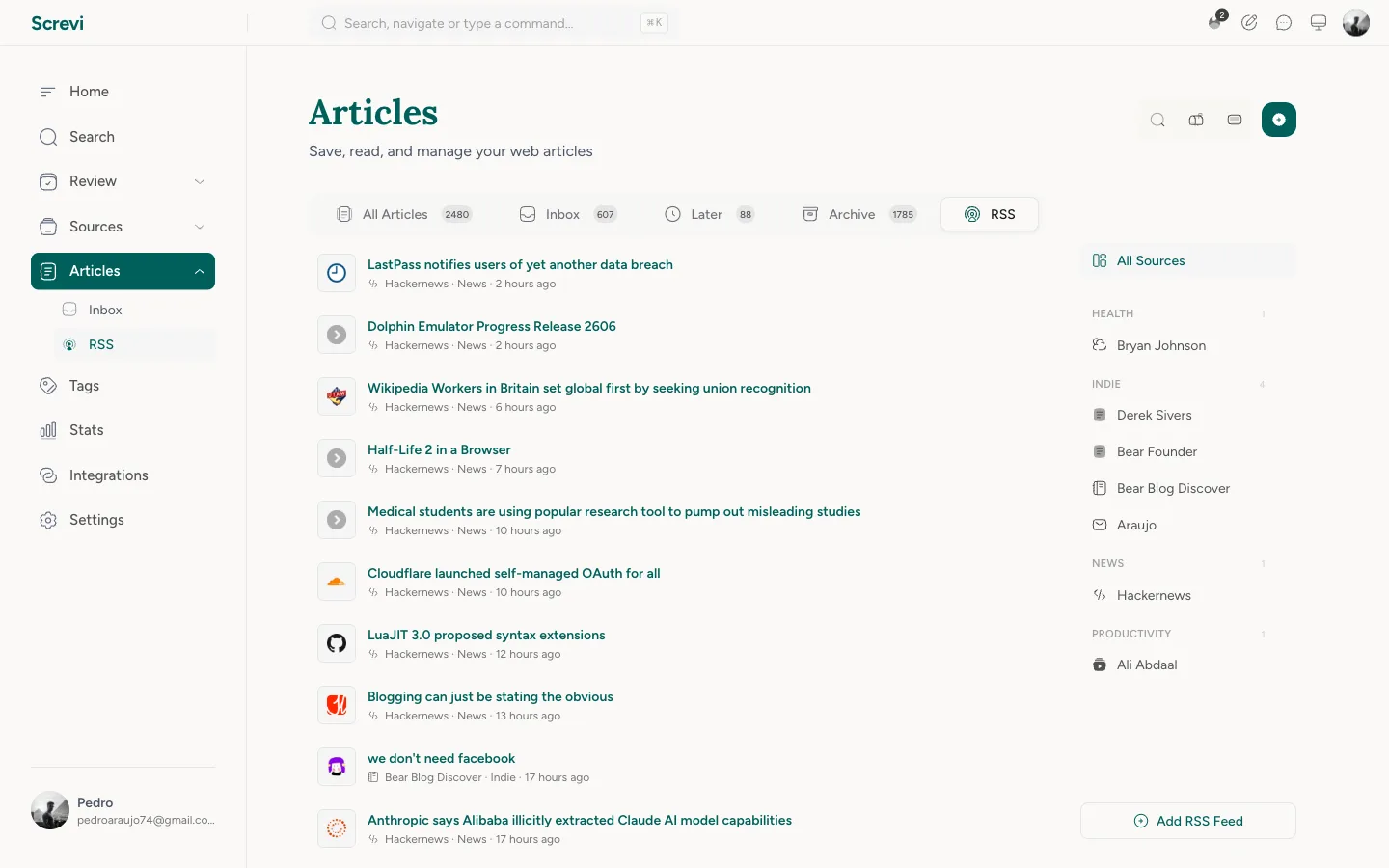
Build your own reading feed instead of chasing links. Screvi's Explore page comes with curated RSS sources, and you can paste in any feed URL to follow the writers and sites you care about.
New posts show up alongside the rest of your reading, ready to save, summarize, and highlight.
## 8. Subscribe to any RSS feed
Build your own reading feed instead of chasing links. Screvi's Explore page comes with curated RSS sources, and you can paste in any feed URL to follow the writers and sites you care about.
New posts show up alongside the rest of your reading, ready to save, summarize, and highlight.
 ## 9. Tag your highlights, and let AI do it for you
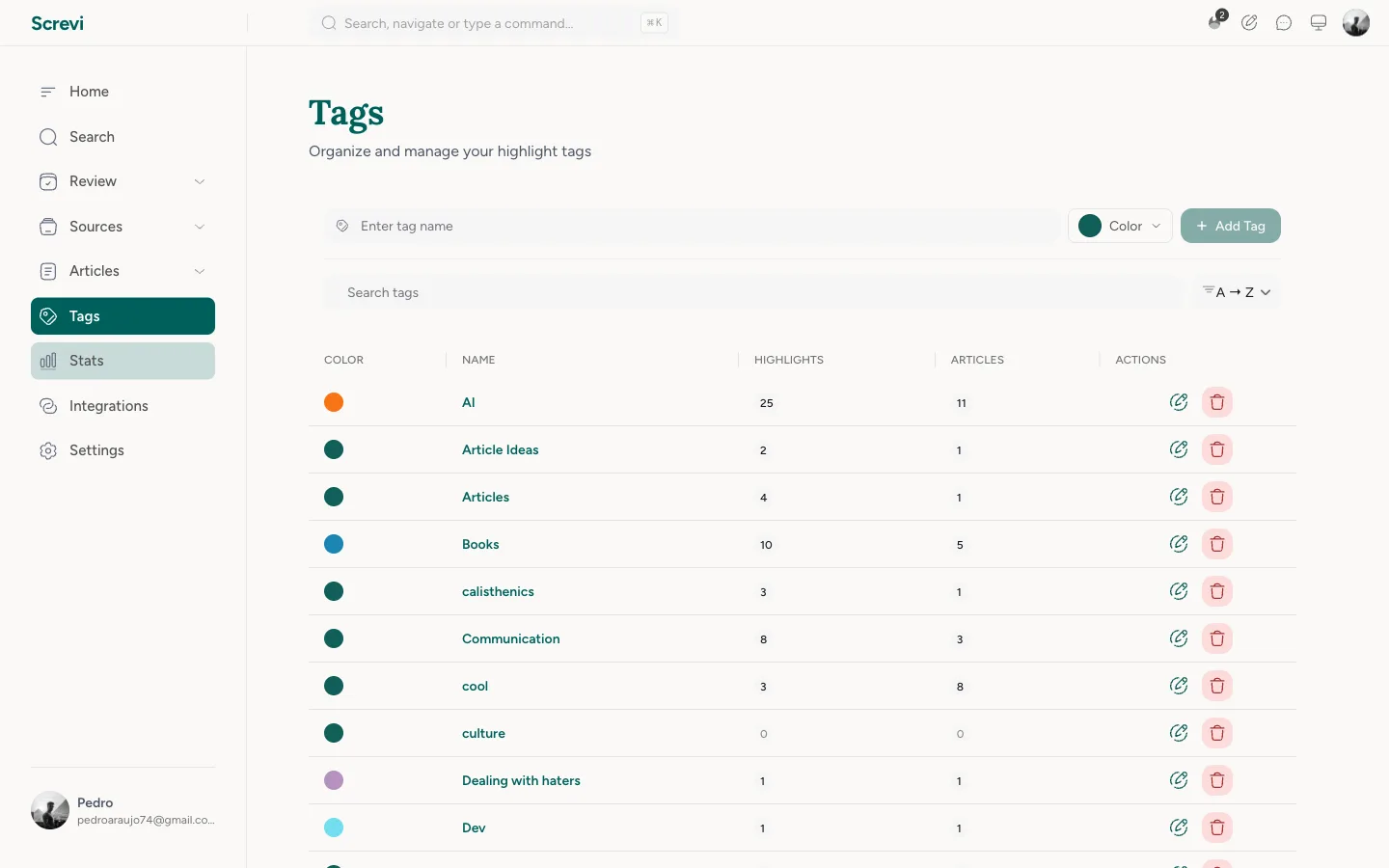
A growing library is only useful if you can slice it. Screvi's tags work across everything you save, books, articles, tweets, and notes alike, with 18 colors and custom hex if you're particular.
The part worth using: **open any highlight, hit "Suggest Tags," and Screvi reads the passage and recommends tags from the ones you already have.** Tag in bulk, filter your feed and search by tag, and the pile finally turns into something you can navigate.
## 9. Tag your highlights, and let AI do it for you
A growing library is only useful if you can slice it. Screvi's tags work across everything you save, books, articles, tweets, and notes alike, with 18 colors and custom hex if you're particular.
The part worth using: **open any highlight, hit "Suggest Tags," and Screvi reads the passage and recommends tags from the ones you already have.** Tag in bulk, filter your feed and search by tag, and the pile finally turns into something you can navigate.
 ## 10. Export anywhere: Obsidian, Notion, Markdown
Your highlights are yours, so Screvi makes them easy to take with you. The official [Obsidian plugin](https://community.obsidian.md/plugins/screvi) syncs straight into your vault. Notion export is in beta. You can also export everything as Markdown or HTML, Apple Notes friendly, delivered as a ZIP organized by source.
Screvi works as the hub: pull your reading in from everywhere, send your highlights wherever you need them.
## Bonus: Highlight straight from the podcast player
Screvi has a podcast player too (iOS, in beta). Listen inside the app, and when a line lands, **tap "Highlight last 30 seconds" to save it straight to your library** instead of scrubbing back to find it later. You can even double-press your AirPods to snip without unlocking.
## 10. Export anywhere: Obsidian, Notion, Markdown
Your highlights are yours, so Screvi makes them easy to take with you. The official [Obsidian plugin](https://community.obsidian.md/plugins/screvi) syncs straight into your vault. Notion export is in beta. You can also export everything as Markdown or HTML, Apple Notes friendly, delivered as a ZIP organized by source.
Screvi works as the hub: pull your reading in from everywhere, send your highlights wherever you need them.
## Bonus: Highlight straight from the podcast player
Screvi has a podcast player too (iOS, in beta). Listen inside the app, and when a line lands, **tap "Highlight last 30 seconds" to save it straight to your library** instead of scrubbing back to find it later. You can even double-press your AirPods to snip without unlocking.