How to Sync and Export Your Kobo Highlights (2026 Guide)
Short answer: Kobo has no cloud API for highlights, so syncing means pulling them off the device. The reliable way is to connect your Kobo over USB and grab the KoboReader.sqlite file from the hidden .kobo folder, then import it into a highlights app. With Screvi you just upload that file once and every highlight, including from sideloaded books, lands in one searchable library.
If you highlight while you read on a Kobo, you've probably hit the wall: the highlights live on the device, and getting them anywhere useful is harder than it should be. This guide covers both routes, Kobo's built-in export and a one-step import that pulls in everything at once.
Why Kobo highlights are hard to sync
Unlike Kindle, Kobo does not provide an API to retrieve your highlights. There's no "send to cloud" button that pushes annotations to a service you control. Everything you highlight is written to a single database file on the device, KoboReader.sqlite, inside a hidden folder called .kobo.
That's good news for ownership. Because the data sits in a standard SQLite file, you can export highlights from any book, even ones you sideloaded and never bought from the Kobo store. The catch: nothing happens on its own. You move the data off the device yourself.
Method 1: Export annotations directly on your Kobo
Newer Kobo devices include a built-in Export annotations option. From a book's reading menu you can export that title's highlights and notes to a file saved on the device, which you then copy to your computer over USB.
Best for: grabbing the highlights from one or two specific books as plain text or HTML.
Limitations: you do it one book at a time, the formatting is plain, and you get a flat file with no review, search, or sync. For the exact menu steps on your model, see Kobo's help article, "Export annotations from your books."
Method 2: Sync every highlight at once with Screvi
Want every highlight from every book in one place you can search and revisit? Skip the per-book export and import the database directly.
Screvi reads your KoboReader.sqlite file and pulls in every highlight and note in one pass. The file is parsed entirely in your browser for privacy. It never gets uploaded to a server.
Step by step
- Connect your Kobo to your computer with a USB cable and confirm the connection on the device.
- Open the Screvi Kobo import page: app.screvi.com/integrations/kobo-import
- Follow the prompts to locate the
KoboReader.sqlitefile in the hidden.kobofolder on your Kobo. - Select the books you want to sync.
- Click Sync Now to import your highlights.
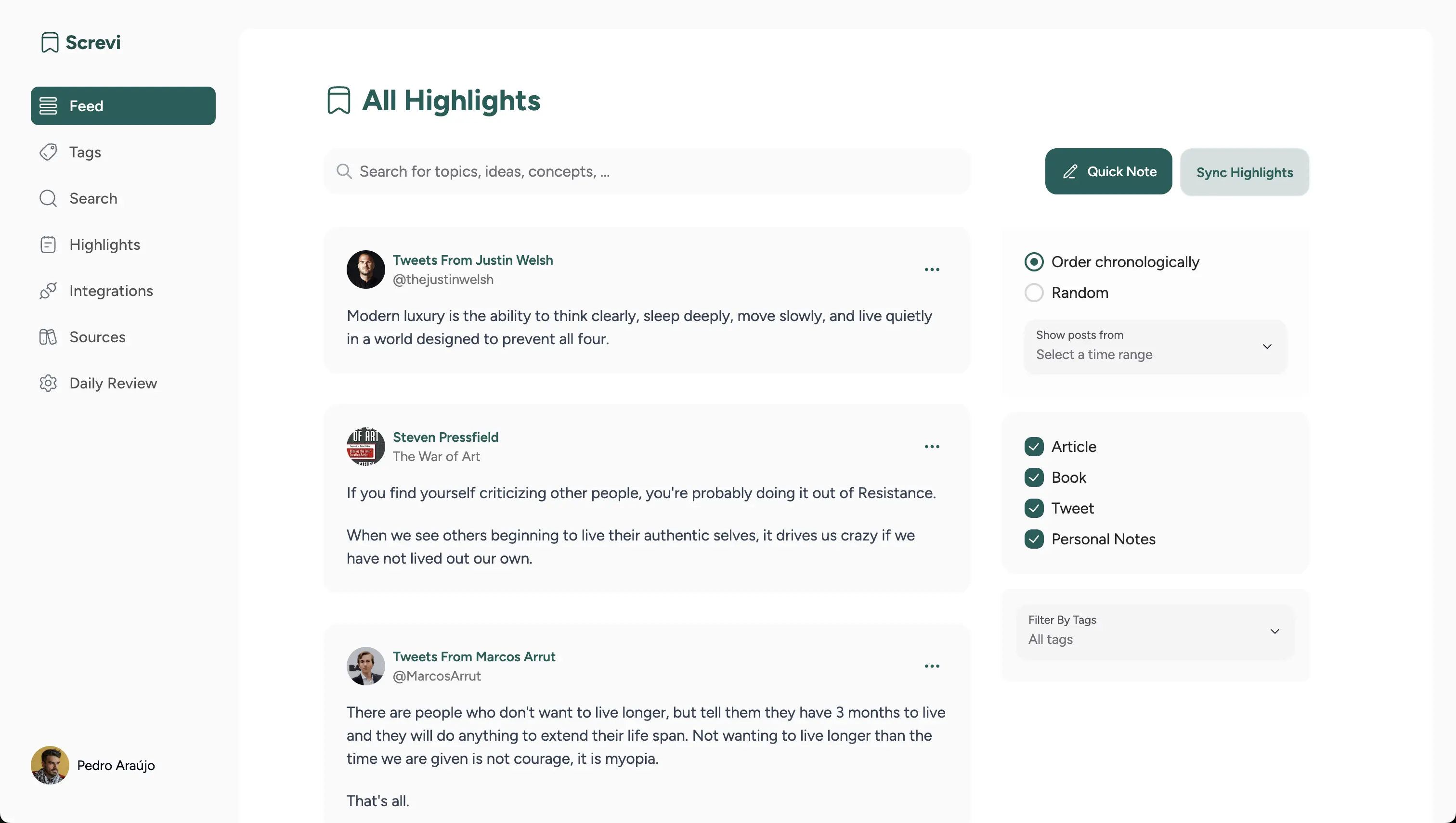
Re-syncing later is just as easy. Run the same import whenever you've read more, and Screvi automatically detects new highlights and skips duplicates, so you never end up with the same passage twice.
Sync Kobo highlights to Notion, Obsidian, or Readwise
Most people want their Kobo highlights to land in the tool they already live in. Search for "kobo highlights to notion" or "kobo to obsidian" and you mostly find scripts to run and copy-paste to do by hand.
Screvi sits in the middle instead: import once from Kobo, then push your highlights onward.
- Obsidian: install the official Screvi plugin from the community store and your Kobo highlights sync straight into your vault.
- Notion: Notion export is on the roadmap, so your highlights can flow into your workspace.
- Readwise users: if you're moving off Readwise, Screvi imports your existing library too, so your Kobo and Readwise highlights live side by side. Here's the full Readwise alternative comparison.
One source of truth, exported wherever you need it, instead of a fragile pipeline per destination.
Don't just store them, use them
Exporting is the easy part. Most highlights die in a folder because nothing ever brings them back.
- Daily Review: Screvi resurfaces your Kobo highlights on a spaced-repetition schedule, Anki-style, so the best passages stay fresh instead of being forgotten.
- AI semantic search: ask "what have I read about focus?" and get the relevant highlights back even when they never use the word "focus."
- One library, every source: your Kobo highlights sit alongside Kindle, Apple Books, web articles and physical-book captures, all searchable in one place.
Frequently asked questions
Does Kobo sync highlights to the cloud?
No. Kobo syncs your reading position and library across devices, but it does not offer an API or cloud export for your highlights. To get them off the device you need to copy the KoboReader.sqlite file over USB.
Where are Kobo highlights stored?
In a SQLite database named KoboReader.sqlite, inside the hidden .kobo folder on the device. Every highlight and note, including from sideloaded books, is stored there.
Can I export Kobo highlights from sideloaded (non-Kobo-store) books? Yes. Because the highlights live in the local database rather than tied to a store account, you can export annotations from any book on the device.
How do I sync Kobo highlights to Notion or Obsidian? Import them into Screvi once, then use the Obsidian plugin (available now) or the upcoming Notion export to push them into your workspace, no manual scripting required.
Do I have to re-import every time I read? You run the import manually when you want fresh highlights, but Screvi detects new ones and removes duplicates automatically, so re-syncing is painless.
Start syncing your Kobo highlights
Stop letting good highlights rot on the device. Import your Kobo highlights into Screvi for free and turn them into something you'll actually revisit.