Claude
Web, desktop, and mobile. Add Screvi as a custom connector once and it follows you across all three.
Claude setup guideModel Context Protocol
Screvi's MCP server connects your highlights, saved articles, notes, and tags to Claude, ChatGPT, Cursor, Claude Code, and any client that speaks the Model Context Protocol. Ask questions grounded in what you actually read, then let the assistant save, tag, and tidy for you.
Included with every Screvi plan and trial. One server URL, every client.
Any client that supports remote MCP servers with OAuth connects the same way. These are the ones people use most.
Web, desktop, and mobile. Add Screvi as a custom connector once and it follows you across all three.
Claude setup guideOne command in the terminal, then /mcp to log in. Your highlights become context for whatever you are building.
Add Screvi as a connector under Settings > Connectors in developer mode.
Paste the server URL under Settings > MCP and authorize when the Screvi page opens.
Perplexity, Mistral, Codex, and every other client that lets you add a remote MCP server with OAuth.
Each one uses material already in your library.
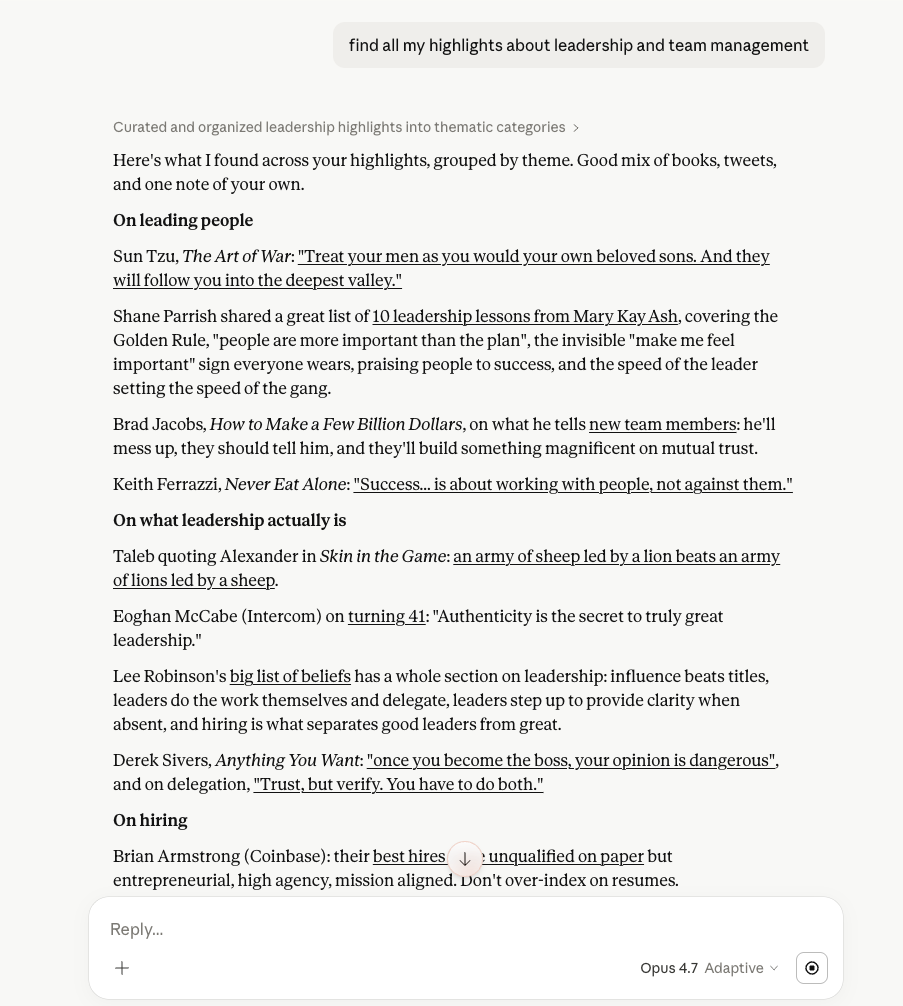
What have I highlighted about decision-making? Group by theme and cite the source.
Semantic search turns scattered passages into a structured brief.
Read the article I saved about deep work and tell me where it disagrees with the Newport book I highlighted.
Reads the full article and cross-references it with your highlights.
Save https://example.com/essay to my inbox and tag it 'writing'.
Saved and parsed in the background, ready to read in a few seconds.
Move everything I saved in the last three days to Later, and archive the newsletters.
Date, tag, and domain filters plus bulk triage, all reversible in the app.
Give me three random highlights to think about this morning.
A daily review without opening the app.
Tag the last five highlights you showed me as 'stoicism' and add a note to the second one.
Tags are created on the spot; notes land on the highlight in Screvi.
Twenty-seven tools. Reading works with every connection. Saving, tagging, and organizing is a separate permission you approve on the consent screen.
Semantic and keyword search over everything you saved, filtered by favorites, source type, author, or tag. "What have I highlighted about attention?" just works.
The assistant gets the article text, plus your highlights, notes, and tags on it. Summarize it, question it, or compare it with a book in your library.
"Save this to my inbox and tag it writing." The page is fetched and parsed in the background, ready to read a few seconds later.
Store a passage the assistant found, attach it to a book or article, add a note, and add or edit notes on highlights you already have.
Add or remove tags on highlights and articles by name, and rename or recolor a tag. New names are created on the spot.
Archive, favorite, or move articles to Later in bulk, filtered by date, tag, or domain. "Move everything from the last three days to Later" is one request.
Ask for three random highlights to reflect on, or every highlight under a tag, sampled at random. Your commonplace book, resurfaced.
Correct an article's title or excerpt, or re-fetch one that came through truncated or full of navigation text.
Read tools are always available. Write tools need write access. The one tool that removes anything sends it to the trash, where you restore it.
searchSemantic and keyword search across highlights, with filtersget-highlightOne highlight with its source, tags, and notesget-sourceOne source with its highlights, paged for long bookslist-sourcesEvery book and other source, with highlight countsget-articleFull text of a saved article with your highlightslist-tagsEvery tag with countsget-highlights-by-tagHighlights under a tag, optionally sampledrandom-highlightsA random sample for daily reviewlist-highlightsRecent highlights by date, source, note or favoritedaily-reviewToday's spaced-repetition review setsearch-articlesSaved articles by text, status, inbox or Later, tag, date, domainsave-articleSave a URL, or HTML you already have, to the inbox with tagscreate-highlightStore a passage as a highlight, with note and tagscreate-highlightsImport up to 100 highlights to a book at once, skipping duplicatescreate-sourceAdd a book or other source, without duplicatesupdate-sourceFix a source's title, author, ASIN, ISBN or noteupdate-highlightEdit a highlight's note, favorite, or textdelete-highlightsMove highlights to the trashadd-tagsTag highlights and articles by nameremove-tagsRemove tags from highlights and articlesupdate-tagRename or recolor a tagarchive-articlesArchive articles, or restore themset-articles-laterMove articles to Later, or backfavorite-articlesFavorite or unfavorite articlesmark-articles-readMark articles read or unreadupdate-article-detailsFix an article's title or excerpt, or add a notereparse-articleRe-fetch an article from its URLThe server URL is the same for every client. Paste it, log in to Screvi when the client asks, and approve.
MCP server URL
Open Settings > Connectors > Add custom connector. Name it Screvi, paste the URL, and approve on the Screvi page.
Open Claude connector settingsRun this in your terminal, then /mcp inside Claude Code to log in.
Settings > MCP > Add server. Paste the URL and complete the login when the Screvi page opens.
Settings > Connectors, in developer mode. Add the URL and approve on the Screvi page.
The consent screen lists exactly what you are granting. Read access is always included; saving, tagging, and organizing is shown separately, and you can approve or decline it.
You log in on Screvi's own page. Your password never reaches the AI client.
Every client gets read access. Saving, tagging, and organizing is a second permission shown on the consent screen, and you decide.
No tool can delete an article, source or tag. Highlights can only go to the trash, where you restore them in one tap. Every other change is reversible in the app.
The token an AI client holds cannot sign in to the Screvi app, change your account, or create API keys. It works on the MCP server and nowhere else.
Settings > API > Connected AI apps lists every connected client. Disconnecting one ends its access immediately, even if it still holds a token.
Screvi sees only the tool calls the assistant makes, never the rest of your chat, and stores none of it.
The same library is available over a REST API with scoped keys, an OpenAPI spec, and an agent skill file for coding assistants.
The Model Context Protocol is an open standard that lets AI assistants connect to outside data and tools. Screvi runs an MCP server at api.screvi.com/mcp, so any client that supports remote MCP servers can work with your library.
Claude on web, desktop, and mobile, Claude Code, ChatGPT, Cursor, and any other client that lets you add a remote MCP server with OAuth. The server URL is the same everywhere.
Yes. MCP access is included with every Screvi plan and with the free trial. There is no extra charge.
Only to the trash. delete-highlights moves them to the same trash the app uses, and you restore them there in one tap. Nothing is removed permanently, and no tool can delete an article, source or tag. With write access it can also save, tag, note, archive, and move articles, all of which you can undo in the app.
Remove the connector in your AI client, or open Settings > API > Connected AI apps in Screvi and disconnect it there. The Screvi side ends access immediately, even if the client still holds its token.
It was connected before write access existed, or you declined it. Disconnect Screvi in the client and connect again; approve the write permission on the consent screen.
No. Connections refresh themselves in the background. One you use at all stays signed in, and only lapses after 90 days without use or when you disconnect it.
Create your account, add your highlights and see how Screvi can change the way you read.